View Submissions
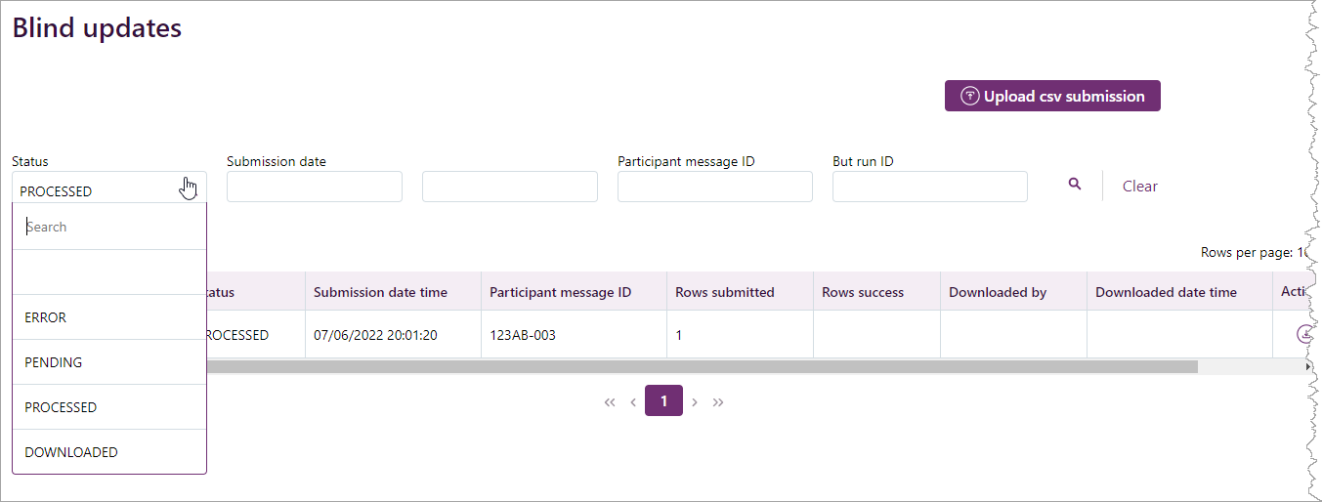
Search submissions
- Access the Blind Updates web interface.
- On the Blind updates interface you can search by all or one of the following criteria:
- Status
- Submission date
- Participant message ID
- BUT run ID
For help with the fields, see Field explanation
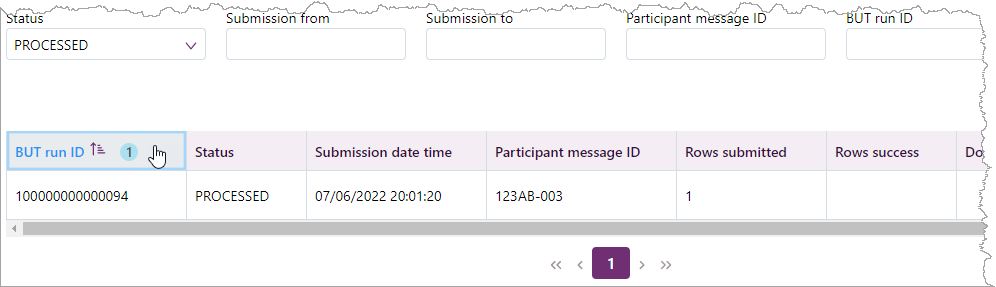
Sort submissions
To sort columns by ascending or descending order, click the column headings.
Field explanation
|
Field |
Description |
|---|---|
|
|
Click to search for your entered criteria |
|
Action |
Column with downloadable submission responses |
|
BUT run ID |
Search for submissions by the Payload Response ID provided by AEMO in the Blind Update interface after a successful submission upload |
|
Clear |
Reset your search criteria |
|
Downloaded by |
The Participant User who downloaded the submission response |
|
Downloaded date time |
The date and time the Participant User downloaded the submission response |
|
Participant message ID |
Search for submissions by the Participant ID you logged in with You can only see submissions for Participant IDs you have access to |
|
Payload ID |
The participant provided payload reference |
|
Payload response ID |
The AEMO-generated unique identifier provided as a reference in the Blind Update interface after a successful submission upload. |
|
Rows submitted |
The total number of rows in your submission |
|
Rows success |
The number of successfully processed rows in your submission. Invalid rows are not stored and require resubmission |
|
Rows per page |
Displays the amount of returned records Maximum results = 1,000. E.g. Displaying 1-1000 of 2139 |
|
Status |
|
|
Submission date from |
The range to search submissions from |
|
Submission date to |
The range to search submissions to |
|
Submission date time |
The date and time of the submission |
