Upload File
About
B2B e-Hub An electronic information exchange platform facilitating B2B Communications. Initiators with the appropriate access rights, use the Upload File interface to upload .zip and .XML eXtensible Mark-up Language. files directly to their B2B Business-to-Business. Generic term used to refer to defined business-to-business interactions between participants; excludes interactions between a participant and market systems such as MSATS. Inbox based on their protocol preference:
- API Application Programming Interface; a set of clearly defined methods of communication between various software components. indicates the Initiator The participant initiating a B2B Interaction. elects to send all Transaction Group The transaction group field in an aseXML Message, see B2B Procedures: Technical Delivery Specification. messages using the API Protocol An AEMO API delivery method..
- FTP File transfer protocol indicates the Initiator elects to send all Transaction See Relevant Rules or Procedures Group messages using the FTP Hokey-pokey Protocol.
Upload File user rights access
For access to Upload File, Participant Administrators select the B2B folder Inbox entity in the Administration >Maintain Rights menu.
Zip files
Uploading .zip files is as easy as selecting the file to upload directly to your B2B Inbox.
XML files
Uploading .XML files involves an extra step because the contents are loaded into the Create New Transaction interface, after, the steps are the same as creating a new transaction, see New Transaction.
File name / Context ID
The participant nominated file name becomes the message’s Message Context ID.
Figure 169 Upload file process
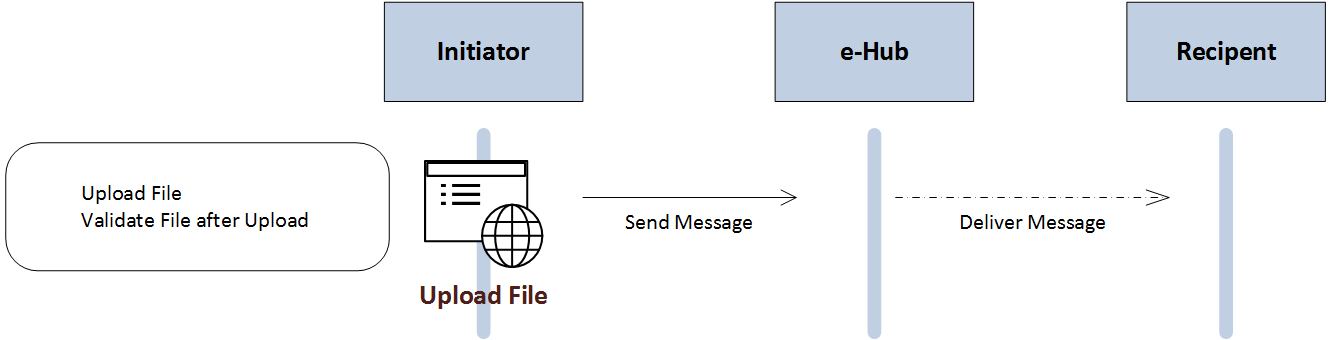
The B2B procedures mandate the first four characters of a message file name must correspond to the messages Transaction Group, either MTRD, MRSR, SORD, CUST, SITE, OWNP, OWNX, NPNX, PTPE. For more details, see the B2B Procedures The documents that comprise the B2B Procedures prescribing the content of, the processes for, and the information to be provided to support B2B communication..
Upload a file
To upload a file:
- On the main menu, click B2B Browser and then click Upload File.
- The Upload File interface displays. Click Browse and locate the file for uploading.
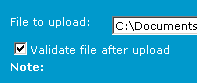
- If you are uploading an .XML file and it requires validation after upload, click the Validate file after upload check box and then click Upload.
- Click Reset to clear the file to upload.
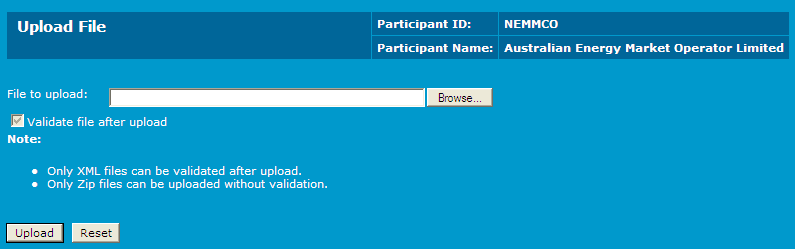
If you upload a .zip file, it uploads directly into your Inbox, without displaying the Create Transaction interface.
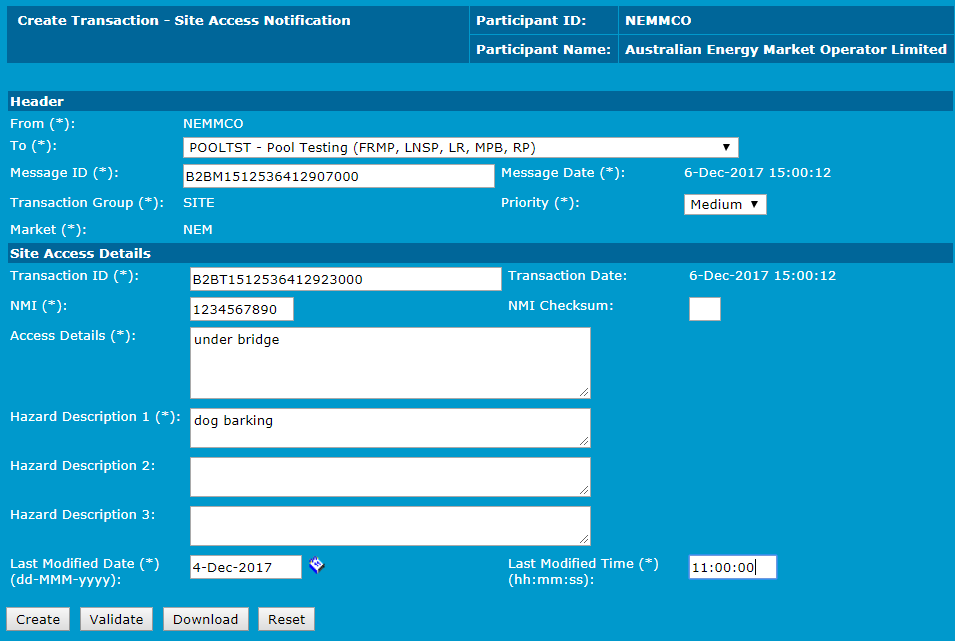
If you uploaded an .XML file, the Create Transaction form displays with the file information. If required, you can edit the values.
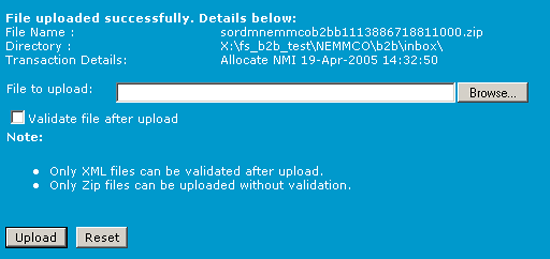
- A confirmation message displays if the .zip file uploads successfully.
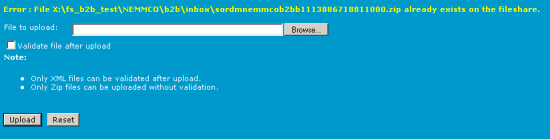
An error message displays if the .zip file already exists or there was an error uploading.
- After uploading, browse your B2B Inbox to check for the uploaded file.
- When the message is delivered to the Recipient, the .zip file is archived to your B2B Inbox Archive. For help, see B2B Inbox Archive on page 1.