View your B2M schema
About
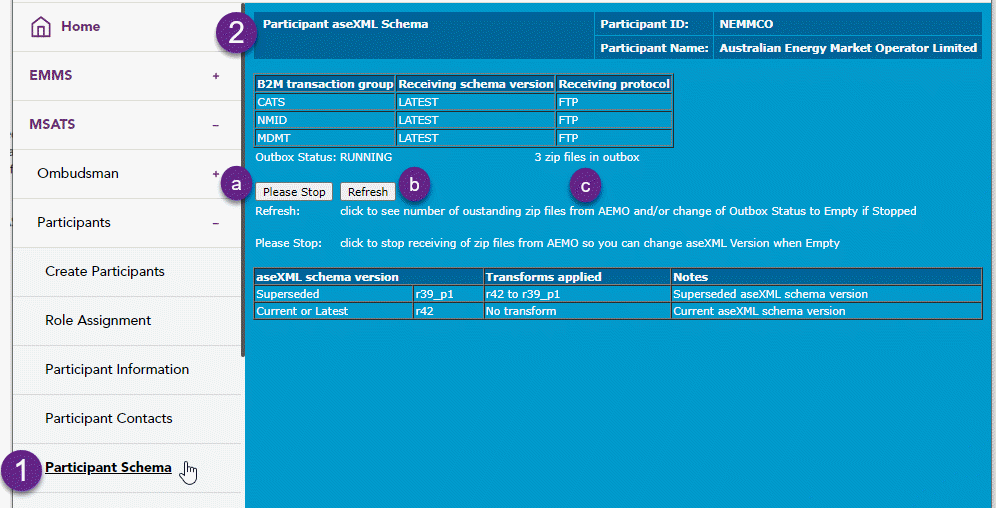
The B2M Business-to-Market schema version your Participant ID Registered participant identifier; A company can have more than one Participant ID. is using and any transforms applied are displayed on the Participant Schema See aseXML Schema. interface.
In the Participant Schema interface Participant Administrators and authorised Participant Users can:
- View or change their B2M aseXML schema status to Current, Superseded, or Latest for each B2M Transaction Group. For details, see Understanding receiving status.
- View the outbox status.
- Elect to stop the receiving of zip files.
- View the number of outstanding zip files.
- Set different Participant Outbox protocols for different CATS, NMID, or MDMT Transaction Groups: FTP, API-Pull, API-Push.
- View outstanding Messages and ACKS.
B2M file processing
The web portal allows participants with access rights to change the status of the file-producing process:
- From Running to Stopped: To stop files being created.
- From Empty to Running: To restart files being created, using the chosen schema.
- From Stopped to Running: To restart files being created, without waiting to change the schema).
B2M schema status
Providing the outbox is empty of all B2M files, participants can change their choice of schema to:
For more detail about B2M schema status, see Understanding receiving status.
- Latest means the participant is set up to receive both current and next projected future version of aseXML A standard for energy transactions in XML. A set of schemas and usage guidelines that define how data should be exchanged under FRC in the gas and electricity industries in Australia.-compliant files.
- Current means the participant can receive files compliant to the current aseXML version.
- Superseded means the participant can receive files compliant to the superseded aseXML version, and needs to change over their receiving system before the next aseXML version release.
Viewing your B2M schema
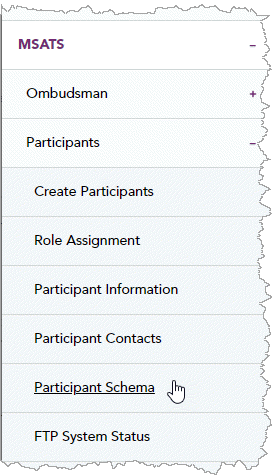
- On the main menu, click Participants and then click Participant Schema
- The Participant aseXML Schema screen displays with your current aseXML Version, and your Outbox Status. From this screen you can do one of the following:
- Stop receiving zip files from AEMO, click Please Stop. Your outbox must be empty to change the aseXML version.
- See the number of outstanding zip files available from AEMO, click Refresh.
- See if the Outbox Status is empty (0 files in outbox).