Awaiting Confirmation
This topic explains how to use the Awaiting Confirmation interface to identify existing delivered quantity records that are pending their approval.
Identify and confirm delivered quantity awaiting approval
Participants only have permission to view delivered quantity records where they are directly involved as a buyer or seller.
To identify records awaiting approval:
- Click Gas Supply Hub , then Delivered Quantity, and then Awaiting Confirmation. For help, see Access GSH Delivered Quantity.
- The Delivered Quantities Awaiting Confirmation interface displays with the list of delivered quantities awaiting confirmation. The following information displays:
- Gas Date: Gas date of the delivered quantity.
- Transaction ID: The unique identifier of the delivery transaction.
- Buyer: The participant code of the buyer receiving the gas.
- Seller: The participant code of the seller delivering the gas.
- Transaction Qty (GJ): The quantity in gigajoules of the specified Transaction ID.
- Product Location: The location of the transacted gas for the specified Transaction ID.
- Settlements Off-market: Whether the delivered variance is settled outside the market, either yes or no.
- Delivered Qty (GJ): The actual delivered quantity of gas in gigajoules.
- Status: Only transactions with a status of submitted display.
- Action: Click the View link to open the record and confirm the transaction.
- Previously Confirmed: A check box indicating if there is a previously confirmed delivered quantity for the gas date and transaction ID.

- In the Action column, click View to see the Confirm Delivered Quantities interface and review the details.
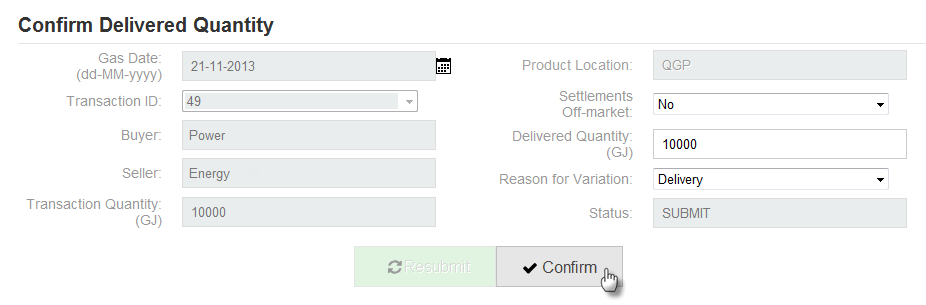
- Next, do one of the following:
- Click Confirm if you agree with the details.
- Change the following fields (if required): Settlements Off-market, Delivered Qty (GJ), Reason for Variation, and click Resubmit.
To understand the submission, modify, and confirm process, About submitting delivered quantity.